Default Filters
The Mint application includes buttons that allow the user to filter results.
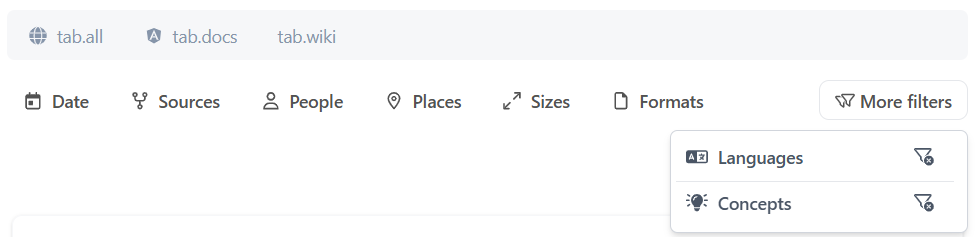
Multiple filter buttons display by default and a More filters button allows the end user to access additional filters as well.
The filters are based on aggregations configured in the mint_query web service in the Sinequa administration interface.
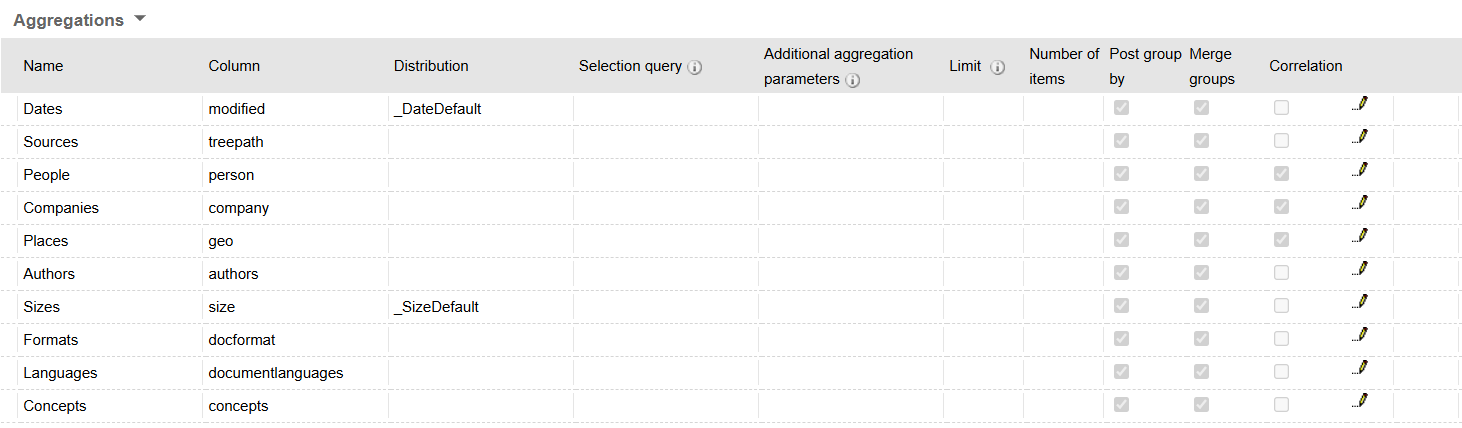
The default filters use the following aggregations:
- Dates
- Sources
- People
- Companies
- Places
- Authors
- Sizes
- Formats
- Languages
- Concepts
The filter buttons appears in the Mint UI in the same order as the aggregations found in the mint_query web service. If you wish to reorder the filter buttons, you simply need to reorder the aggregations in your mint_query web service.
Modifying the Default Filters
In the latest version of Mint, filters are no longer configured in the Mint workspace.
To add, delete, or modify filters, you must have access to the Sinequa administration interface.
You do not have access to the Sinequa demo server administration interface. Therefore, you would need to connect your Mint application to your own Sinequa server if you wanted to modify the filters in Mint.
Here are the basic steps to modify the filters in the latest version of Mint:
-
In the administration interface, go to Search-Based Applications > Apps.
-
Click on your App.
-
Go to the Customization (JSON) tab.
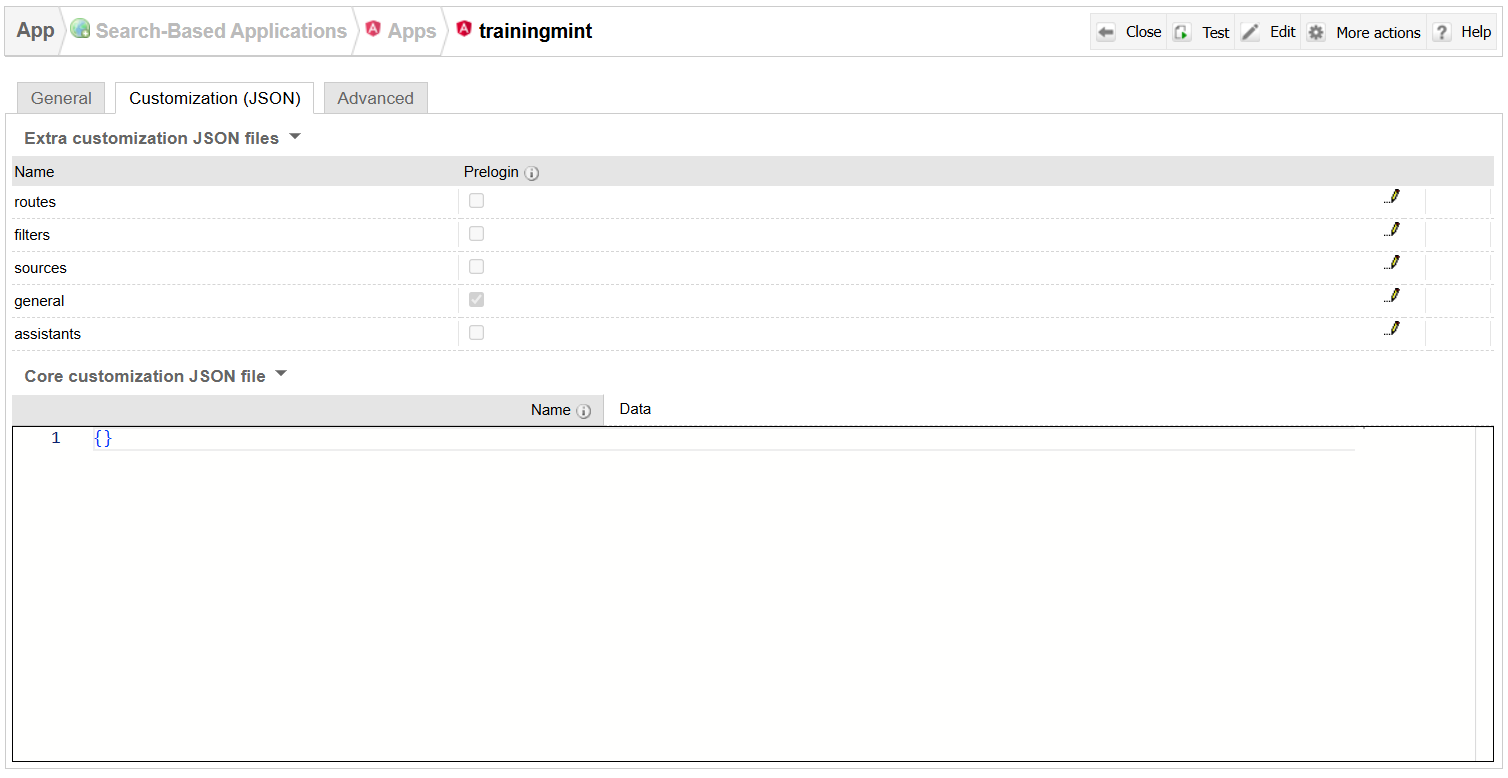
- Click on the pencil icon to edit the filters file.
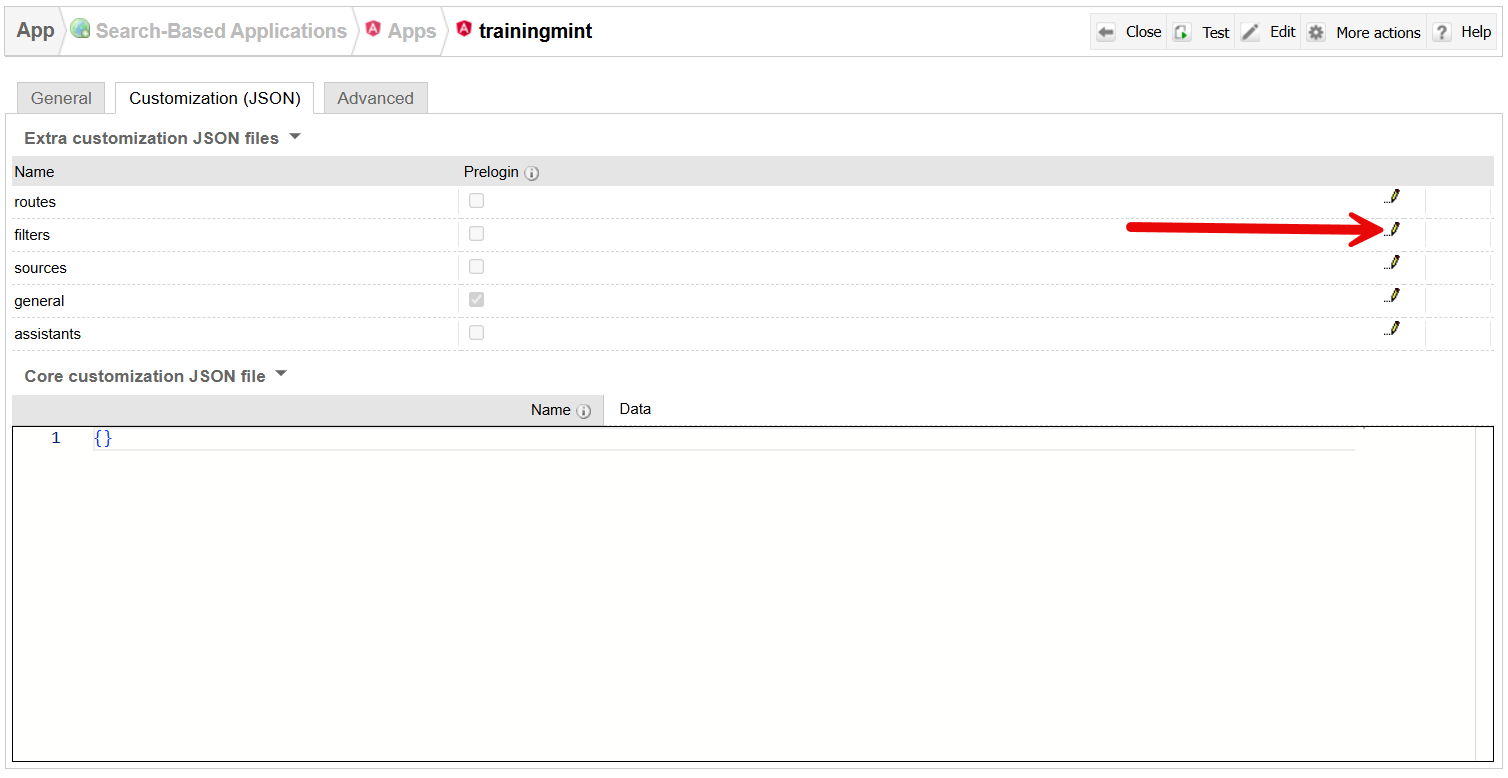
You will see a JSON in which the filters are defined:
[
     {
        "column": "authors",
        "icon": "far fa-user",
        "display": "column.authors"
    },
    {
        "column": "company",
        "icon": "far fa-buildings",
        "display": "column.companies"
    },
    {
        "column": "modified",
        "icon": "far fa-calendar-day",
        "display": "Date"
    },
    {
        "column": "size",
        "icon": "fa-regular fa-arrow-up-right-and-arrow-down-left-from-center",
        "display": "column.sizes"
    },
    {
        "column": "doctype",
        "icon": "far fa-file"
    },
    {
        "column": "geo",
        "icon": "far fa-location-dot",
        "display": "column.geos"
    },
    {
        "column": "documentlanguages",
        "icon": "far fa-language",
        "display": "column.documentlanguages"
    },
    {
        "column": "concepts",
        "icon": "fa-solid fa-lightbulb-on"
    },
    {
        "column": "person",
        "icon": "far fa-user",
        "display": "column.persons"
    },
    {
        "column": "docformat",
        "icon": "far fa-file"
    },
    {
        "column": "treepath",
        "icon": "far fa-code-fork"
    }
]
- Replace this JSON with the following:
[
    {
        "column": "modified",
        "icon": "far fa-calendar-day",
        "display": "Date"
    },
    {
        "column": "docformat",
        "icon": "far fa-file"
    },
    {
        "column": "treepath",
        "icon": "far fa-code-fork"
    }
]
- Save your changes, go to your Mint application, and search for network.

There should now be different filters available.
As a reminder, the filter buttons appears in the Mint UI in the same order as the aggregations found in the mint_query web service. If you wish to reorder the filters, you simply need to reorder the aggregations in your mint_query web service.
For more information about filters in Mint, see the Filters documentation page.