Preview
The Preview feature allows the viewing of the content of a document with many searching tools. It is included in the side drawer opening upon clicking on a document in the results list.
Architecture
The Preview component (PreviewComponent) is composed of many components:
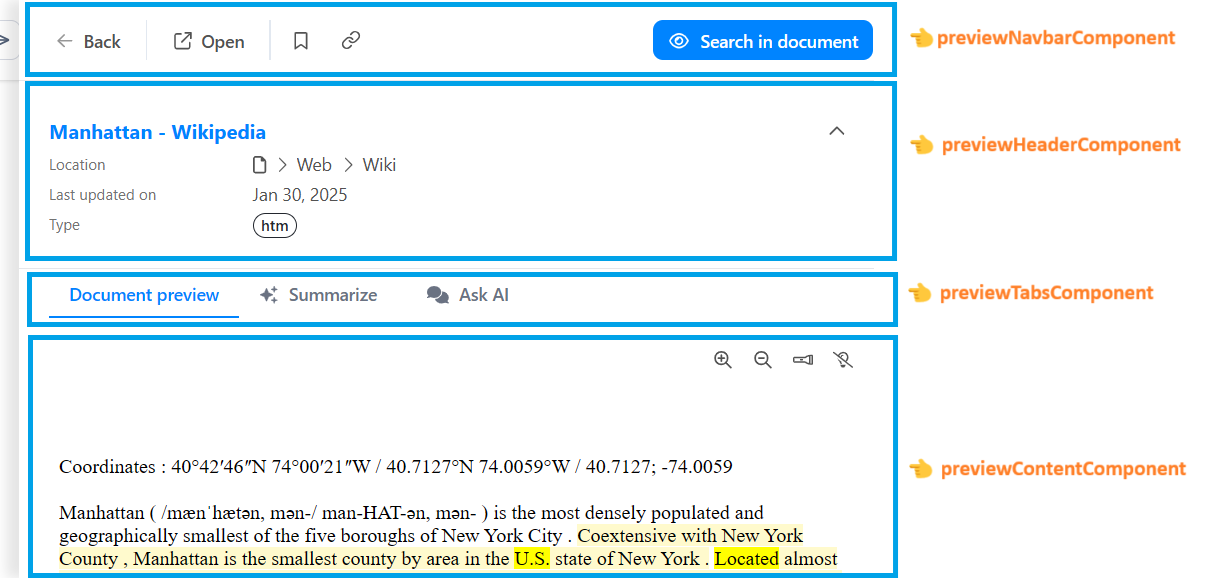
- The Navbar (
PreviewNavbarComponent) handling many actions related to the preview and document such as opening it in a new tab, adding it to the bookmarks or displaying the advanced search. - The Header (
PreviewHeaderComponent) displays the document's data such as the title, location, modified date and type. - The Tabs (
PreviewTabsComponent) displays some tabs navigation, used here to allow having a Summary and Discussion tabs to have the AI Assistant to respectively make a summary of the current document, and to chat about it. It is displayed if one of these assistants is allowed. - The Assistant (
AssistantComponent) for both the summary and discussion tabs. - The Content (
PreviewContentComponent) displaying the document content iframe.
It is included in a drawer component (DrawerPreviewComponent), from the @sinequa/atomic-angular library, which couples it with a search component (AdvancedSearchComponent) offering ways to interact with the preview content such as navigating through the found entities and extracts.
How does the preview opens itself?
In order to open the preview drawer, multiple steps are at play:
- Upon clicking on an article in the results list, it is selected in the Selection Store and the drawer is asked to be opened
- When opening, the Drawer (
DrawerStackComponent) takes the last selected article from the Selection Service (SelectionHistoryService) which is based on the Selection Store. - The found article is then injected into the children component, here being the Preview Drawer
- The Preview then initializes itself based on the configuration to display the different elements (filters, tabs for the assistants)
Multi conversion
Workflow
If configured on the platform side, it can be enabled with the customization JSON's feature flag previewMultiConversion.
It is mainly handled inside PreviewTabsComponent which relies on the feature flag and previewData.conversions data fetched after the initial preview loading.
There are different steps going on:
- Upon loading the preview, we get the
previewDatawhich contains itsconversionsdata - Based on that and the feature flag, we select the first default conversion if any, or primary if any, and we display a dropdown at the end of the preview tabs to allow switching between them
- Upon choosing a conversion, it is transmitted to
PreviewContentComponentwhich will use it for a couple of interactions:- use its URL for the preview iframe
- in case we have a selected passage, we check if the document is primary, and if not there are no possible highlighting so we force a scrolling to the page (only works if HTML) that we first get through the
queryService.getDocPageService
- Choosing a conversion also emits it, which is then used by
PreviewNavbarComponentto only display the button to toggleAdvancedSearchif the document is primary