Logos and Title
How It Works
The application title and logos are set dynamically at startup by the bootstrapApp() function.
-
bootstrapApp()is invoked during application startup, as part of the Angular app initialization process. -
In your
app.config.ts, the following line ensures this happens:app.config.tsimport { bootstrapApp } from '@sinequa/atomic-angular';export const appConfig: ApplicationConfig = {providers: [provideAppInitializer(() =>bootstrapApp(inject(Router), inject(ApplicationService), { createRoutes: true })),/*...*/],}; -
The
bootstrapAppfunction will callinitAndCreateRoutes()orinit()depending on thecreateRoutesvalue on theApplicationServiceas part of the bootstrapping process.
What Does It Do?
- Sets the browser tab title to your configured application name.
- Sets CSS custom properties for your logos:
--logo-small(for small logo)--logo-large(for large logo)--logo-alt-text(for accessibility/alt text)
- These CSS variables can be used in your styles or HTML to display the logos.
How to Use the Configuration
Set Up Your Customization
Set the configuration in customization (JSON) section of the Sinequa administration.
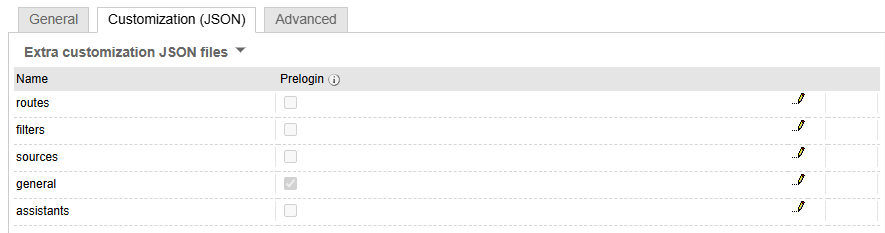
Customize Logos and Title
Ensure the general custom file is present with the required properties.
{
  "general": {
    "name": "My Custom App",                 // The application title (sets the browser tab title)
    "logo": {
      "light": {
        "small": "/assets/logo-small.png",   // URL for the small logo (used in CSS variable --logo-small)
        "large": "data:image/png;base64,..." // URL for the large logo (used in CSS variable --logo-large)
      },
      "alt": "My Custom App Logo"            // Alternate text for accessibility
                                             // (used in CSS variable --logo-alt-text)
    }
  }
}
name: The application title (sets the browser tab title).logo.light.small: URL for the small logo (used in CSS variable--logo-small).logo.light.large: URL for the large logo (used in CSS variable--logo-large).logo.alt: Alternate text for accessibility (used in CSS variable--logo-alt-text).
Usage in Your Application
Use the CSS variables in your styles or HTML to display the logos, for example:
#navbar-logo {
  content: var(--logo-small) / var(--logo-alt-text);
}
Workflow Schema: Customizing Logos and Title
- Start Application: The app starts and loads configuration (including
general). - initAndCreateRoutes(): Called during app initialization and reads the
generalconfig. - If
general.nameorgeneral.logoexists: Sets the document title and CSS variables for logos. - UI: Uses these CSS variables to display the logos and title.
- Application Ready: The UI reflects your custom branding.
Alternative: Customizing Logos and Title via styles.css
If the configuration JSON (general object) does not exist or is not loaded, your application will fall back to the default CSS variables defined in your styles.css file.
How It Works
-
In
styles.css, CSS custom properties (variables) are set under the@themeblock:@theme {--logo-small: url('assets/logo/small.svg');--logo-large: url('assets/logo/large.svg');--logo-alt-text: 'Sinequa logo';} -
These variables are used throughout your application to display the logo and set the alt text.
-
You can customize the default logo and title by editing these variables directly in
styles.css.
- If no configuration JSON is present,
styles.cssprovides the default branding. - Edit the CSS variables in
styles.cssto set your application's logo and title appearance.
Summary
bootstrapApp()is called automatically at app startup.- Provide your custom title and logo URLs in the
generalconfig object as shown above. - The UI will reflect your changes without further code modification.